
Orders
Here you see the orders that are to be picked and delivered, open an order and create new ones. Everything else in the field app starts from an order.
Before you start
- You are signed in, see Signing in and out.
The start page
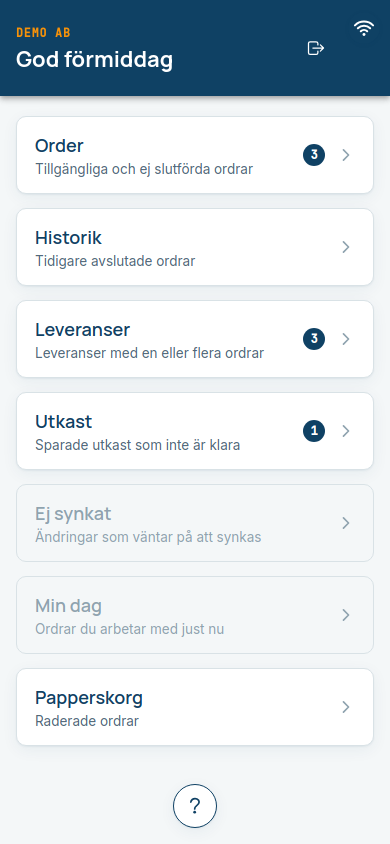
The start page is the main menu. The cards show how many orders are in each step:
| Card | Contents |
|---|---|
| Order | Available and not yet completed orders |
| Historik (History) | Earlier completed deliveries, see History |
| Leveranser (Deliveries) | Orders waiting for delivery, see Deliveries |
| Utkast (Drafts) | Saved drafts that are not finished, see Drafts and sync queue |
| Ej synkat (Not synced) | Changes waiting to be synced |
| Min dag (My day) and Papperskorg (Trash) | Prepared for later. The cards are grey if the function is switched off at your company. |
The order list
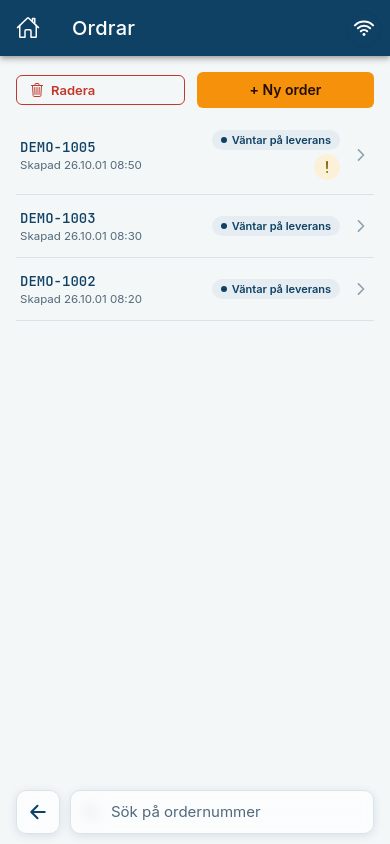
Tap Order. The list shows the order number, when the order was created and a status label:
- Utkast (Draft): the order is saved but not finished.
- Väntar på leverans (Waiting for delivery): the pallets' labels are printed and the order is under Leveranser.
- Slutförd (Completed): the order has been delivered.
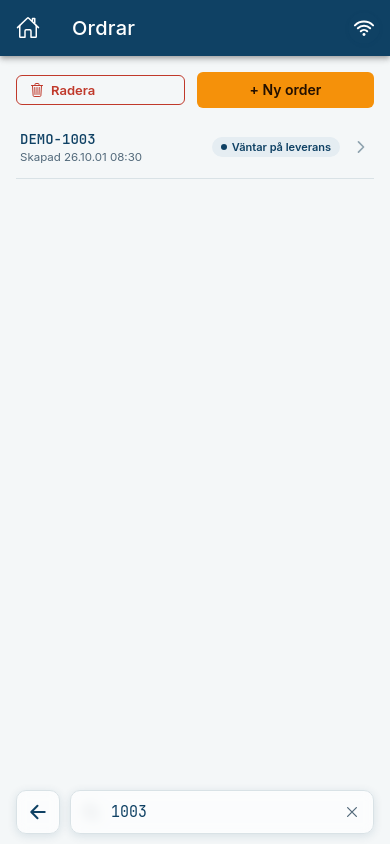
An exclamation mark on a row means the order has a deviation, see Deviations. Type in the Sök på ordernummer (Search by order number) field at the bottom to filter the list.
Create an order
Tap + Ny order (+ New order) in the order list.
Enter the order number and tap Skapa (Create). Tap Avbryt (Cancel) to back out.
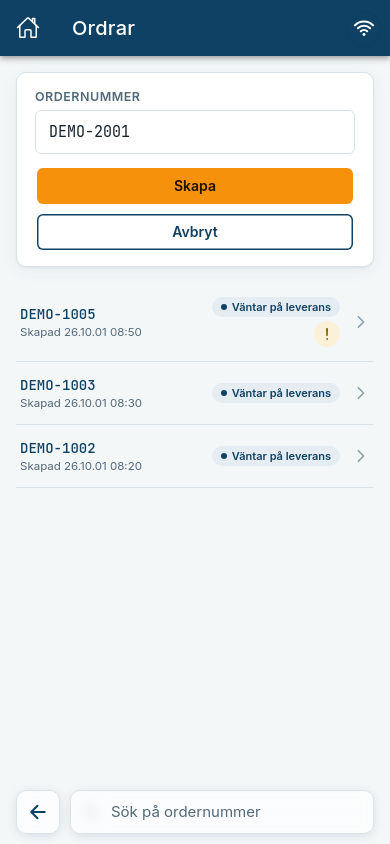
Expected: The order opens straight away. You do not need to find it in the list.
The order number must be unique
If the number already exists, no new order is created. If you created the order without a connection, you get the message under Ej synkat, see Offline and sync.
The same order number more than once
If your TenantAdmin has switched on Samma ordernummer flera gånger (The same order number more than once, see Configuration), you may create a new order with a number that already exists.
- Enter the order number and tap Skapa (Create).
- The box Ordern finns redan (The order already exists) says where the order is, for example "Denna order finns redan i Utkast, vill du skapa en till?" (This order already exists in Utkast, do you want to create another one?).
- Tap Ja (Yes) to create a new, empty order with the same number, or Nej (No) to leave it. The number stays in the field.
Expected: After Ja the new order opens. It is an order of its own: no pallets or order data come with it, and it gets rows of its own on the delivery list.
Without a connection
The box only knows the orders on your device. If someone else created the same number while you were offline, the first to sync wins, and the other order is removed with its pallets. You get the message under Ej synkat, see Offline and sync.
The order detail
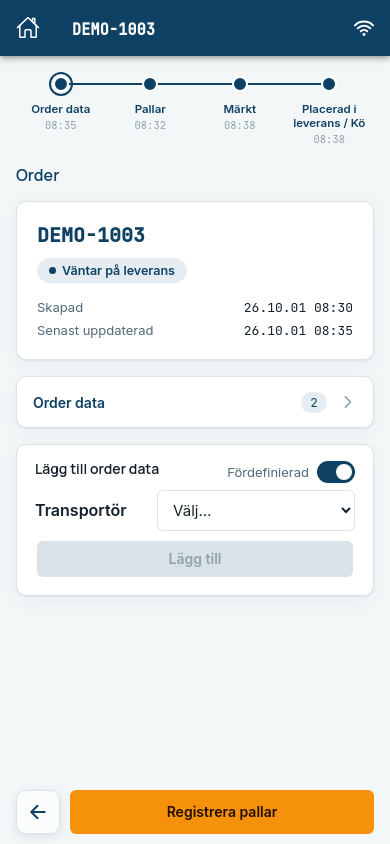
Tap an order to open it. At the top is the trace line, which follows the order through four steps: Order data, Pallar (Pallets), Märkt (Labelled) and Placerad i leverans / Kö (Placed in delivery / Queue). Completed steps are blue, the step you are on is orange, and the time shows when the step was done.
Under the trace line are the order number, status, when the order was created and last updated. After that come:
- Order data: extra details on the order, see Order data.
- Registrera pallar (Register pallets): the button at the bottom, see Pallets.
Delete an order
Tap Radera (Delete) in the list, mark one or more orders (Markera alla, Mark all, is also available) and tap Radera valda ordrar (Delete selected orders). The order is hidden in all lists. Nothing is deleted permanently.
Common errors
| Message | What to do |
|---|---|
| Ordern kunde inte hittas. Den kan ha tagits bort. (The order could not be found.) | Go back to the list. The order may have been deleted by a colleague. |
| Kunde inte hämta ordern. Kontrollera anslutningen och försök igen. (Could not fetch the order.) | Check that you are online (the icon at the top right) and try again. |
| Ordern är slutförd. Inga fler statusändringar är möjliga. (The order is completed. No more status changes are possible.) | A delivered order cannot be changed. |