
Base data
Under Grunddata (Base data) you see your article register and the settings that belong to it: the attributes, what is checked when scanning, how a pallet is shown and what makes a pallet unique. With the right access you can do the same here as Packstep can, except import a file.
Before you start
- You are signed in as TenantAdmin. Open Grunddata on the start page.
- Packstep (Superadmin) has switched base data on for your company. Otherwise the card is not there.
- You are online. The page is fetched from the server each time you open it.
How it works
- Packstep decides which parts you see. The parts are Artiklar (Articles), Attribut (Attributes), Scanning, Pallvy (Pallet view) and Unika pallar (Unique pallets). A part that is not switched on is not shown.
- Packstep also decides whether you may change a part. If you may not, the text Endast visning – du kan titta men inte ändra här. (View only – you can look but not change here.) is shown under the heading.
- A change Packstep makes shows the next time you open the page. You do not need to sign out.
- Everything you change is written to the activity log with you as the actor. Packstep sees the same log.
- The devices fetch changes when someone signs in and when they come back online. This device gets your changes straight away. Under Artiklar it says when this device last checked the base data.
- If you have changes that are not saved, the app asks before they are lost, for example when you switch tabs or tap Avbryt (Cancel). Choose Stanna kvar (Stay) to go on, or Släng ändringar (Discard changes).
Looking at the articles
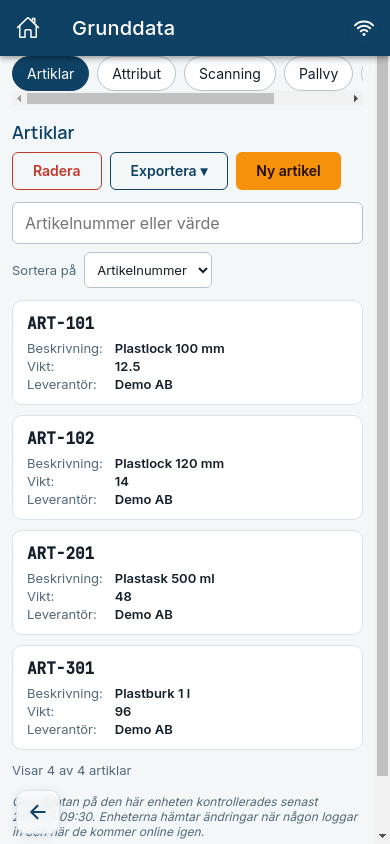
- Tap Grunddata on the start page.
- Choose Artiklar among the tabs at the top.
- Type in the search box to find an article. The search covers the article number and every value.
- Choose what the list is sorted on under Sortera på (Sort by). Articles without a value come last.
- Tap Visa fler (Show more) at the bottom to see more than 20 articles.
Expected: On a phone each article is a card with its article number, for example ART-101, and its values. On a computer it is a table with one column per attribute.
Exporting the base data
- Open the Artiklar tab and tap Exportera (Export).
- Choose Excel (.xlsx) or CSV (.csv).
Expected: The file is downloaded and it says Exporterad: (Exported:) and the file name. The file is laid out like an import file.
- Export always works when you see Articles. You do not need Får ändra (May change).
- The export is written to the activity log, since it hands out your register.
Adding, changing and deleting articles
This is only possible if Packstep has given you Får ändra (May change) on Articles. Otherwise the buttons are not there.
- Tap Ny artikel (New article) above the list. Fill in Artikelnummer (Article number) and the values you want, and tap Skapa artikel (Create article).
- Tap an article in the list to change it. Change the values and tap Spara (Save). An empty field removes the value.
- To delete the article, tap Radera artikel (Delete article) at the bottom, and then Ja, radera (Yes, delete).
Expected: The list shows again with a confirmation, for example Artikel ART-101 sparad. (Article ART-101 saved.)
- The article number must be unique and cannot be changed afterwards.
- A deleted article cannot be brought back. Orders already created are not affected.
Deleting several at once
This works under Artiklar and Attribut if you have Får ändra on that part.
- Tap Radera (Delete) above the list.
- Tap what you want to delete. It turns red. Markera alla (Mark all) marks everything the search shows.
- Tap Radera valda (Delete selected) and then Ja, radera (Yes, delete). Behåll (Keep) takes you back without deleting anything.
Expected: It says for example 2 artiklar raderade. (2 articles deleted.) and they are gone from the list.
- Avbryt (Cancel) leaves the mode without deleting anything.
- Deleting attributes removes their values from every article. If an attribute is shown in the pallet view, it is removed from there too.
- If something goes wrong nothing is deleted, and the marks stay.
Changing attributes
This is only possible if Packstep has given you Får ändra (May change) on Attributes.
- Open the Attribut tab and tap Nytt attribut (New attribute). Fill in Namn (Name) and Datatyp (Data type).
- Fill in the value for the articles that should have it under Värden per artikel (Values per article). Find an article with Sök artikel (Search article). To give every empty one the same value, type it in Samma värde för alla tomma (Same value for all empty) and tap Fyll i tomma (Fill in empty). Tap Skapa attribut (Create attribute).
- Tap an attribute to change its name or data type and tap Spara (Save).
- If you print through Cloudlabel, tick Skickas till Cloudlabel (Sent to Cloudlabel) straight on the attribute, or Skicka alla till Cloudlabel (Send all to Cloudlabel) at the top. You change the variable name inside the attribute.
- Use the arrows next to an attribute to move it up or down. The order sets the columns under Articles.
- To delete an attribute, open it, tap Radera attribut (Delete attribute) and then Ja, radera (Yes, delete).
Expected: The list shows again with a confirmation, for example Attributet Vikt sparat. (The attribute Vikt saved.) Each attribute shows how many articles have a value.
- A new attribute goes last. Empty fields are left empty.
- If you change the data type, existing values stay as they are. If some do not fit the new type, you are told how many.
- Deleting an attribute removes its values from every article. It cannot be undone.
Change scanning
You can only do this if Packstep has given you Får ändra (May change) on Scanning.
- Open the Scanning tab. Each attribute is a row in the table.
- Tick Hämtas vid scanning (Fetched when scanning) for the attributes to fetch from the base data when an article is scanned.
- To check the fetched value against the label, tick Ska jämföras (To be compared) and type the field's name in Fält i QR-koden (Field in the QR code), for example
B. Press Enter or move to the next field to save. - The boxes in the column headings tick or untick the whole column.
Expected: The choice is saved straight away, with no Save button. At the next scan, a warning is shown if the value on the label does not match the base data.
- An attribute shown in the pallet view is always fetched. It says Används i pallvyn (Used in the pallet view) and the box cannot be unticked.
- If you clear the name in Fält i QR-koden, the attribute is no longer compared. It is still fetched.
Change the pallet view
You can only do this if Packstep has given you Får ändra (May change) on Pallet view.
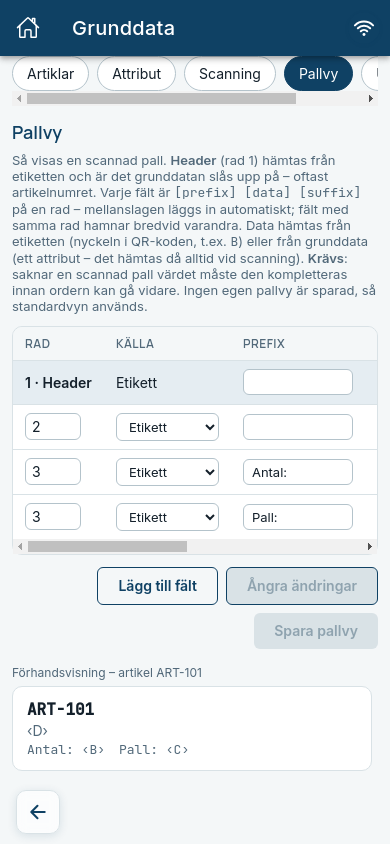
- Open the Pallvy (Pallet view) tab. Each field is a row in the table. The first one is the header (row 1), which always comes from the label.
- Change Rad (Row), Källa (Source: Etikett Label or Grunddata Base data), Prefix, the data and Suffix. With the source Label you type the key in the QR code, for example
B. With the source Base data you choose an attribute. - Tick Krävs (Required) if a pallet without the value has to be completed.
- Lägg till fält (Add field) adds a row last and Ta bort (Remove) removes a field. Ångra ändringar (Undo changes) brings back what is saved.
- Tap Spara pallvy (Save pallet view).
Expected: It says Pallvyn sparad. (Pallet view saved.) The preview below the table shows what the pallet looks like as you change it.
- Spara pallvy can only be tapped when every field has its data. What is missing is shown on the row, for example Skriv nyckeln (Type the key).
- An attribute shown in the pallet view is always fetched when scanning.
- You can only change a field used in Unika pallar (Unique pallets) if you also have Får ändra on Unique pallets. Otherwise the row says Används i Unika pallar (Used in Unique pallets).
Change unique pallets
You can only do this if Packstep has given you Får ändra (May change) on Unique pallets.
- Open the Unika pallar (Unique pallets) tab. The fields that make a pallet unique are shown with + between them.
- Choose a field under Lägg till fält (Add field) to add it to the rule.
- Tap Ta bort (Remove) next to a field to take it out of the rule.
Expected: The change is saved straight away. No fields chosen means duplicates are not checked.
- Only fields that are Krävs (Required) in the pallet view can be chosen, and the header. If a field is missing, add it to the pallet view first.
The other tabs
| Tab | What it shows |
|---|---|
| Attribut | The register's columns in order: name, key, data type and how many articles have a value. If you print labels through Cloudlabel, it also shows whether the value is sent to the label and under which name. |
| Scanning | Which attributes are fetched when an article is scanned, and which field of the label's QR code a value is compared with. |
| Pallvy | How a scanned pallet is shown, row by row. Row 1 is the article number from the label. The mark Etikett (Label) or Grunddata (Base data) shows where the value comes from. Fields marked Krävs (Required) must have a value, otherwise the pallet has to be completed. Below the rows is a preview of the pallet, with the values of the first article. |
| Unika pallar | The fields that make a pallet unique on an order. No fields means duplicates are not checked. |
Common questions
| Question | Answer |
|---|---|
| I do not see the Grunddata card. | Base data is not switched on for your company, or it was switched on after you signed in. Sign out and in again. If that does not help, contact Packstep. |
| It says Det finns inget i grunddatan att visa för er just nu. (There is nothing in the base data to show you right now.) | Base data is on, but none of its parts. Contact Packstep. |
| I want to change something but it says Endast visning. | Packstep decides whether you may change each part. Contact Packstep. |
| It says Kunde inte hämta grunddatan. (Could not fetch the base data.) | You are offline or cannot reach the server. Check the connection and open the page again. |
| Can I import a file? | No, Packstep does the import. You can export, change and add here. |